
Deploy A Sample Application
In this example we’ll deploy the StartMeUp sample application in the recently created Kubernetes cluster. “StartMeUp” is a Go-based SaaS starter kit. It serves as a foundational example that you can adapt and extend for your specific requirements.
Important
StartMeUp repo has been configured to build and push a container image to GitHub Container Registry. You can deploy your own apps in the same way. Just need to have a CI that pushes the image to your own Container Registry and integrate with the Edka.
Prerequisites
Section titled “Prerequisites”- You have completed the steps in Build Your Own Platform as a Service, which sets up your Kubernetes cluster, Envoy Gateway, Certificate Manager, PostgreSQL and Container Registry.
1. Create a new deployemnt in Edka
Section titled “1. Create a new deployemnt in Edka”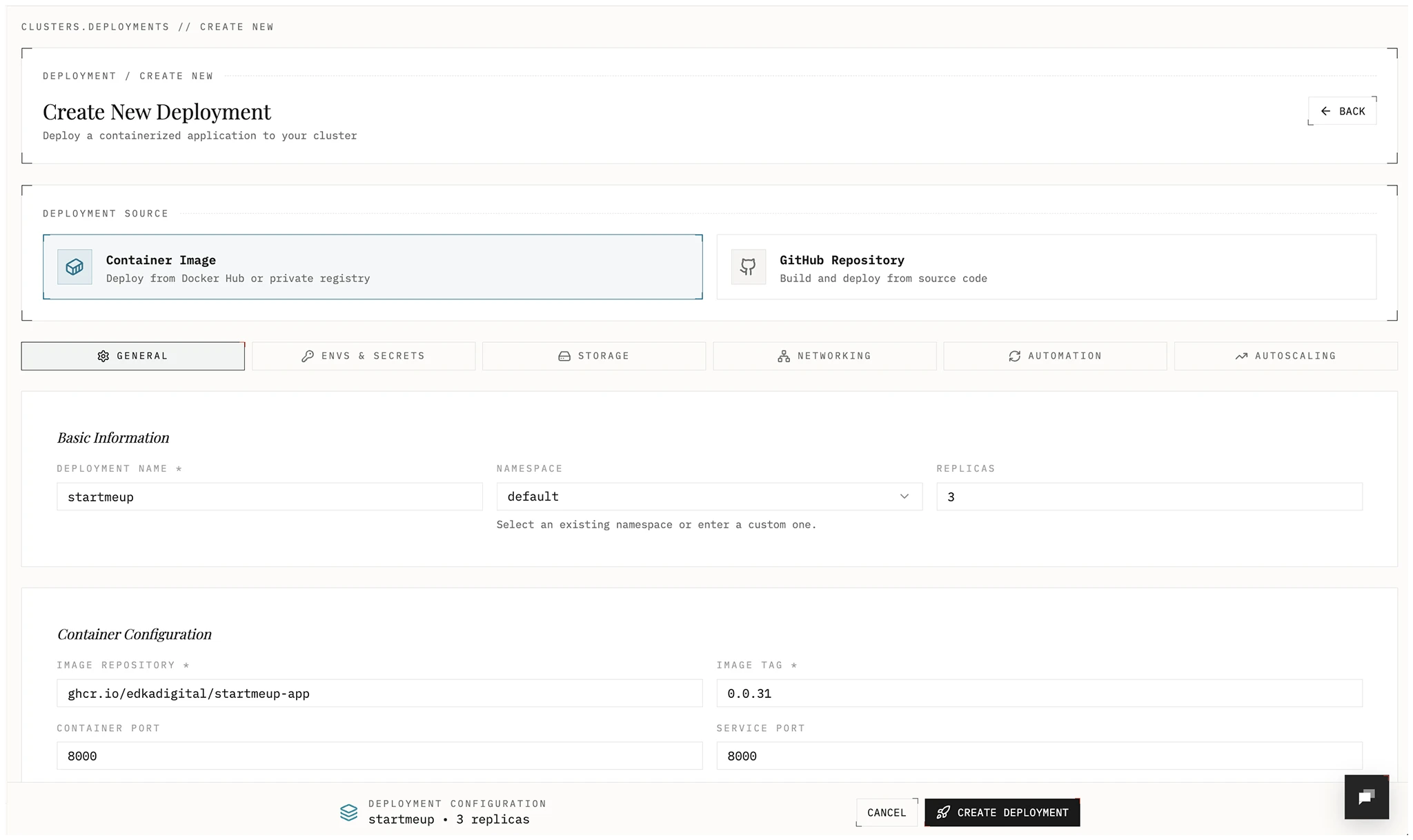
In the deployment form, set the following values:
- Name:
startmeup - Number of Replicas:
3 - Namespace:
default - Image Repository:
ghcr.io/edkadigital/startmeup-app - Image Tag:
0.0.31 - Container Port:
8000
The “StartMeUp” application requires two secrets to function correctly:
Navigate to the Env & Secrets tab and create the following secret values:
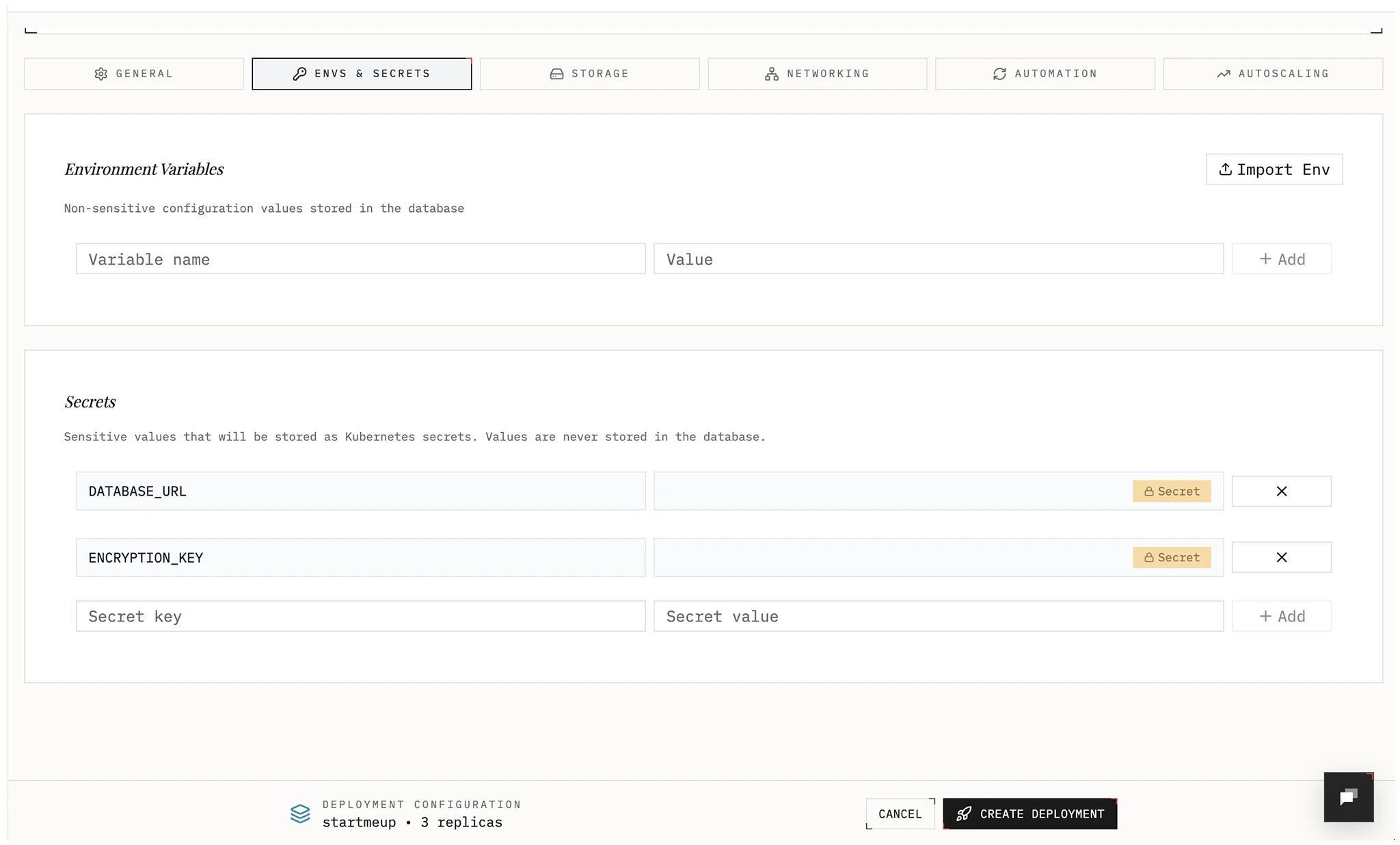
DATABASE_URL: The connection string for the PostgreSQL database.ENCRYPTION_KEY: A random string used by the application for data encryption.
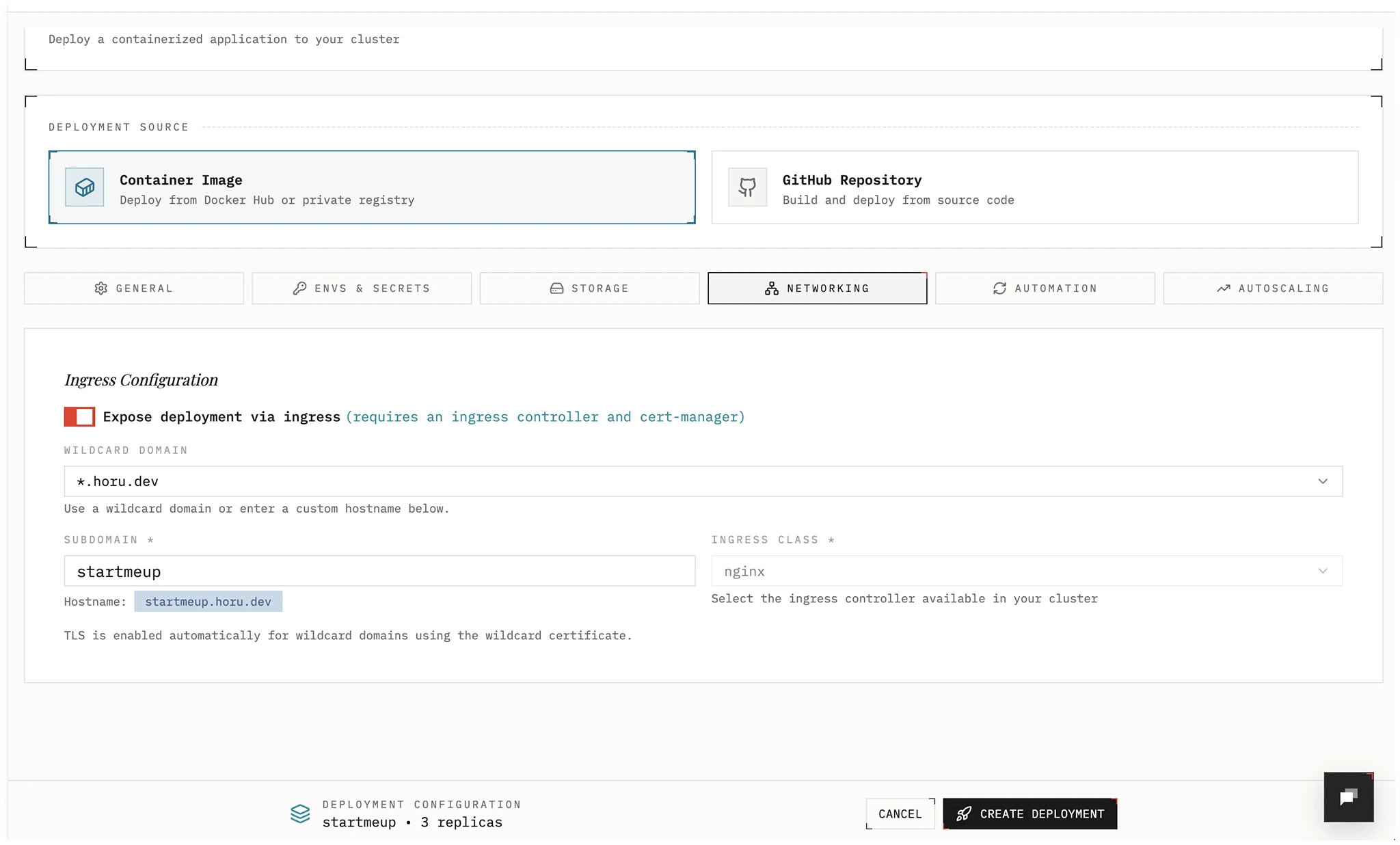
Next, navigate to the Networking tab and expose the application to the internet:
Make sure your DNS is pointing to your cluster’s primary Gateway API endpoint. You can find it in the cluster overview under Gateway API, or in the full cluster Gateway tab.
If you have a wildcard domain configured, you can select it from the dropdown.
For new deployments, Edka recommends choosing a Gateway API traffic class.
Alternatively, you can use a custom domain or a legacy ingress class when you
need compatibility with existing manifests.
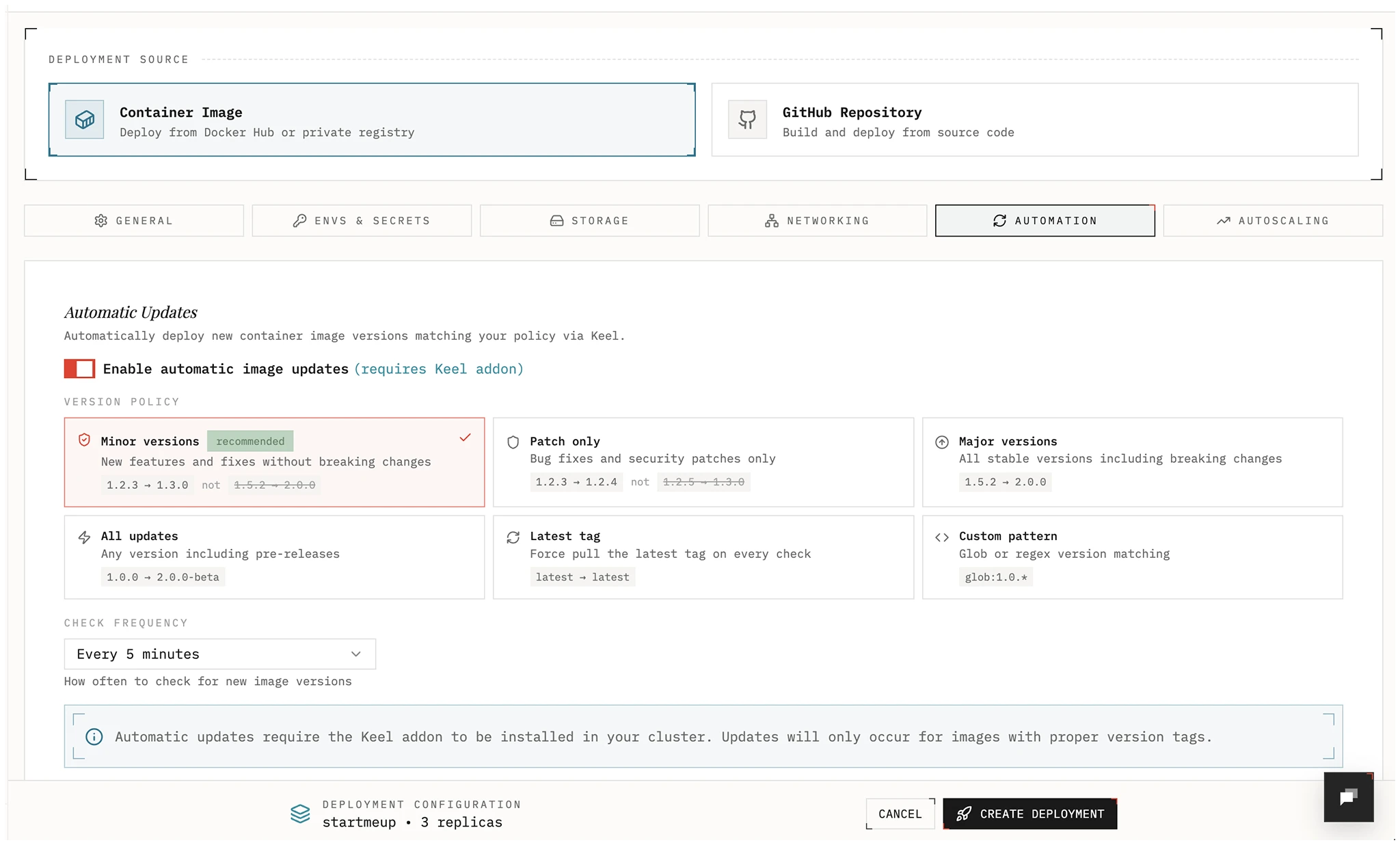
Set automatic updates in the Automation tab:
You can enable automatic updates for your application. Configure the desired update strategy and interval. The keel add-on deployed in your cluster will monitor and update your application when a new container image is pushed to the registry.
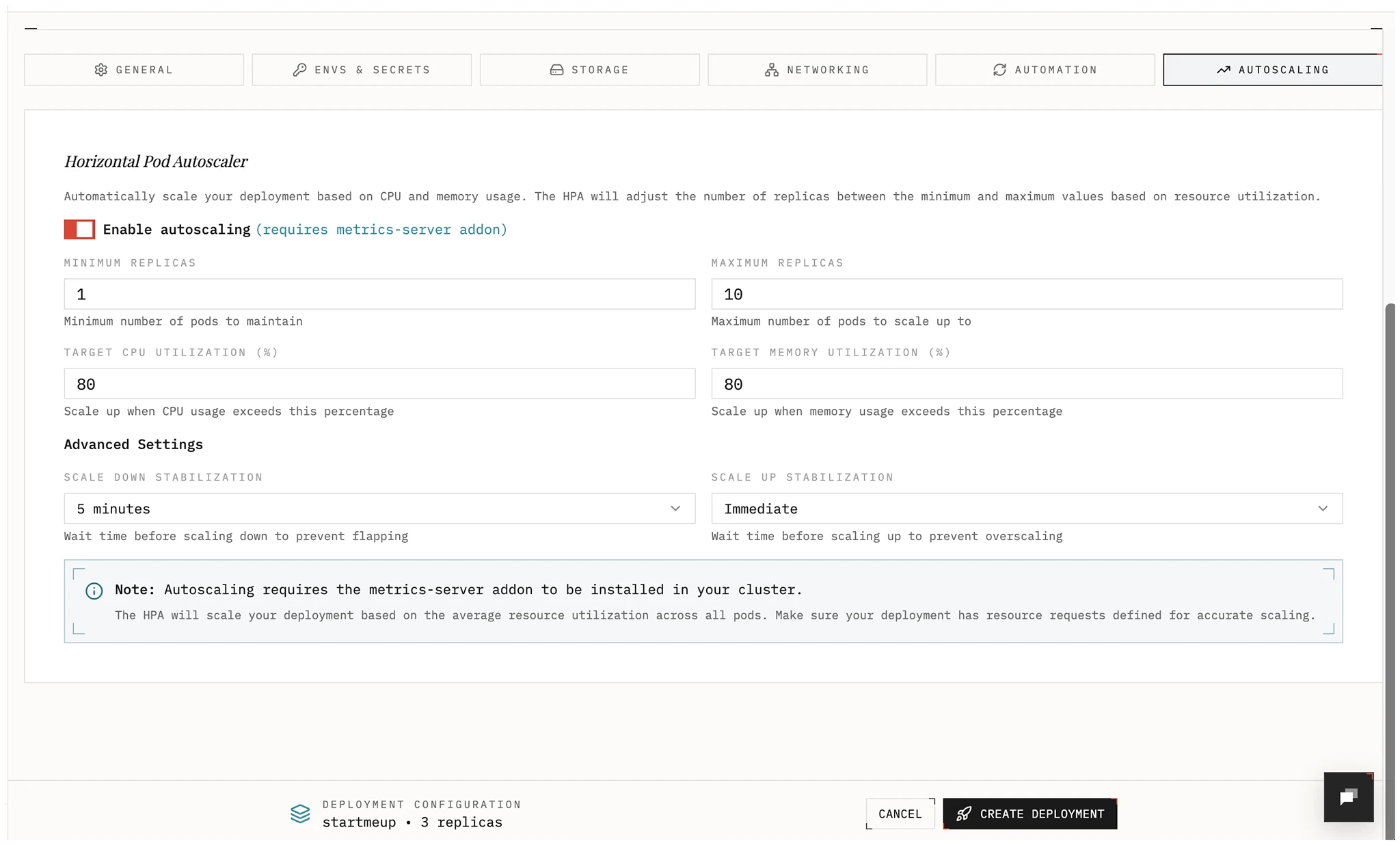
Enable autoscaling in the Autoscaling tab:
Configure the desired scaling strategy. A horizontal pod autoscaler will be configured in your cluster to scale the application based on the desired metrics.
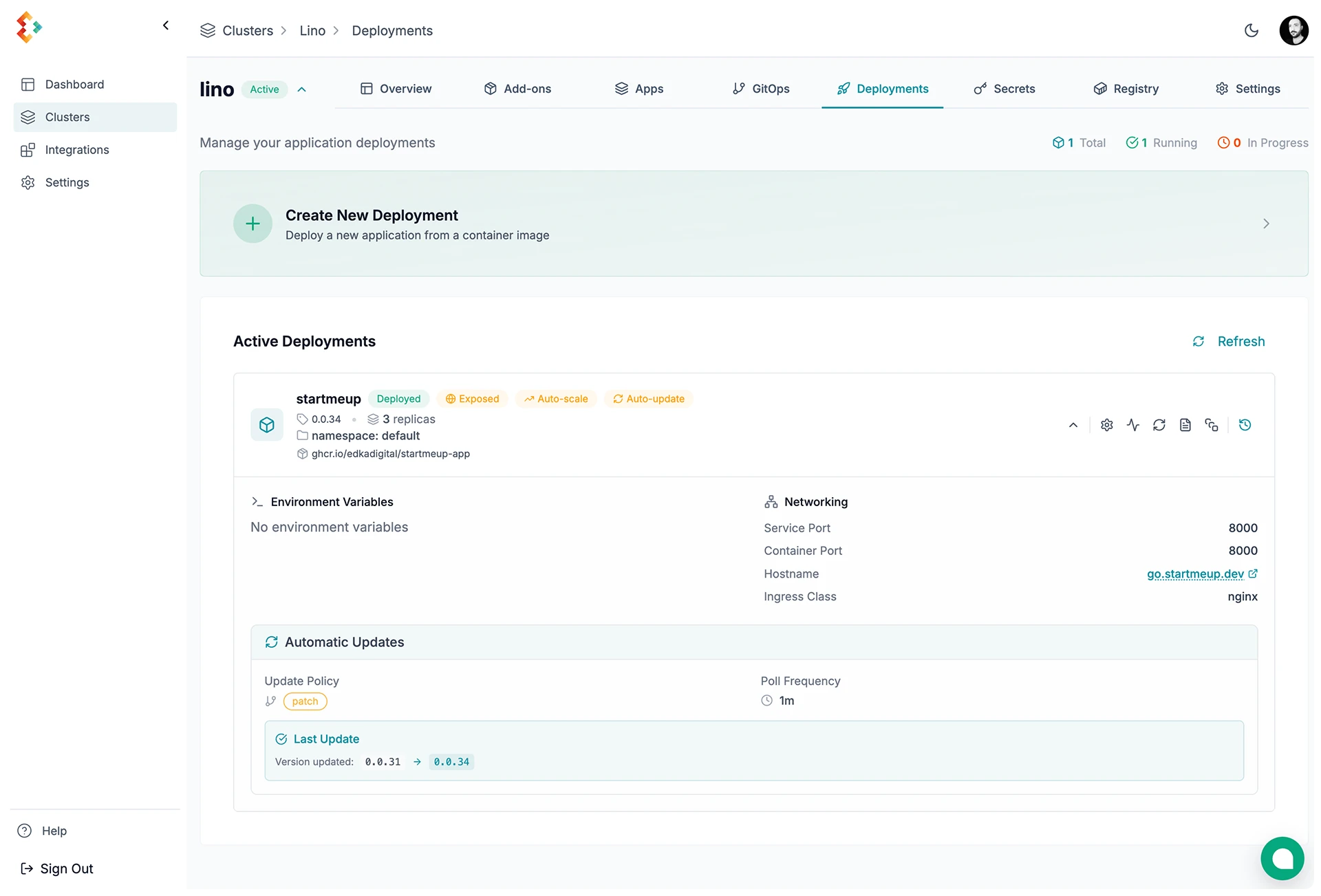
Verify Deployment
You can now access the application at the domain you configured in the Networking tab.
You can also check status and logs from the deployment details dropdown.
Rollback
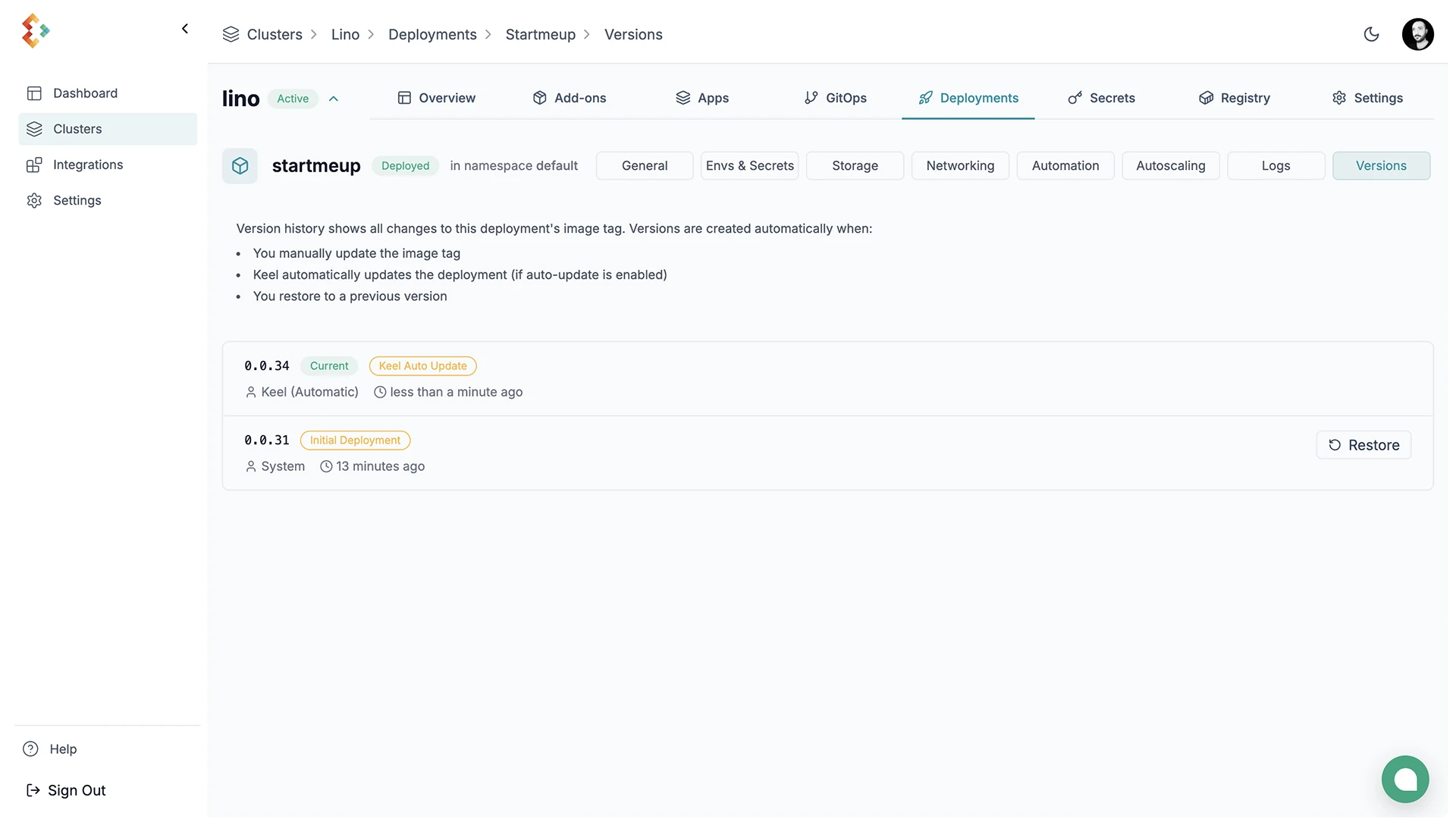
You can rollback to a previous version of the application from the deployment details dropdown.